
PHOTO MAPS & JOURNEY FILMS
Photo geotagging,
from trail to film.
Turn your photographs into a map of your hike, ride or road trip. Import images and a GPX recording, locate photos with camera GPS, capture time or a manual pin, then export GPS-tagged copies and a film of the terrain you crossed.
Make a photo mapFree editor · Up to 15 photos per map
Bring the originals
JPEG, PNG, WebP, AVIF and HEIC/HEIF. Camera RAW files use an embedded JPEG preview when available.
Find the right place
Keep camera GPS, match by capture time, or move a photograph to a location on the map.
Take the journey with you
Export GPS-tagged JPEG copies, a map image or a 1080p terrain and photo video.
From camera roll to journey film.
Follow these steps in Studio, or jump to the matching moment in the video. No GPX is needed when you only want to map photos with camera GPS or manual locations.
1.Import your photographs
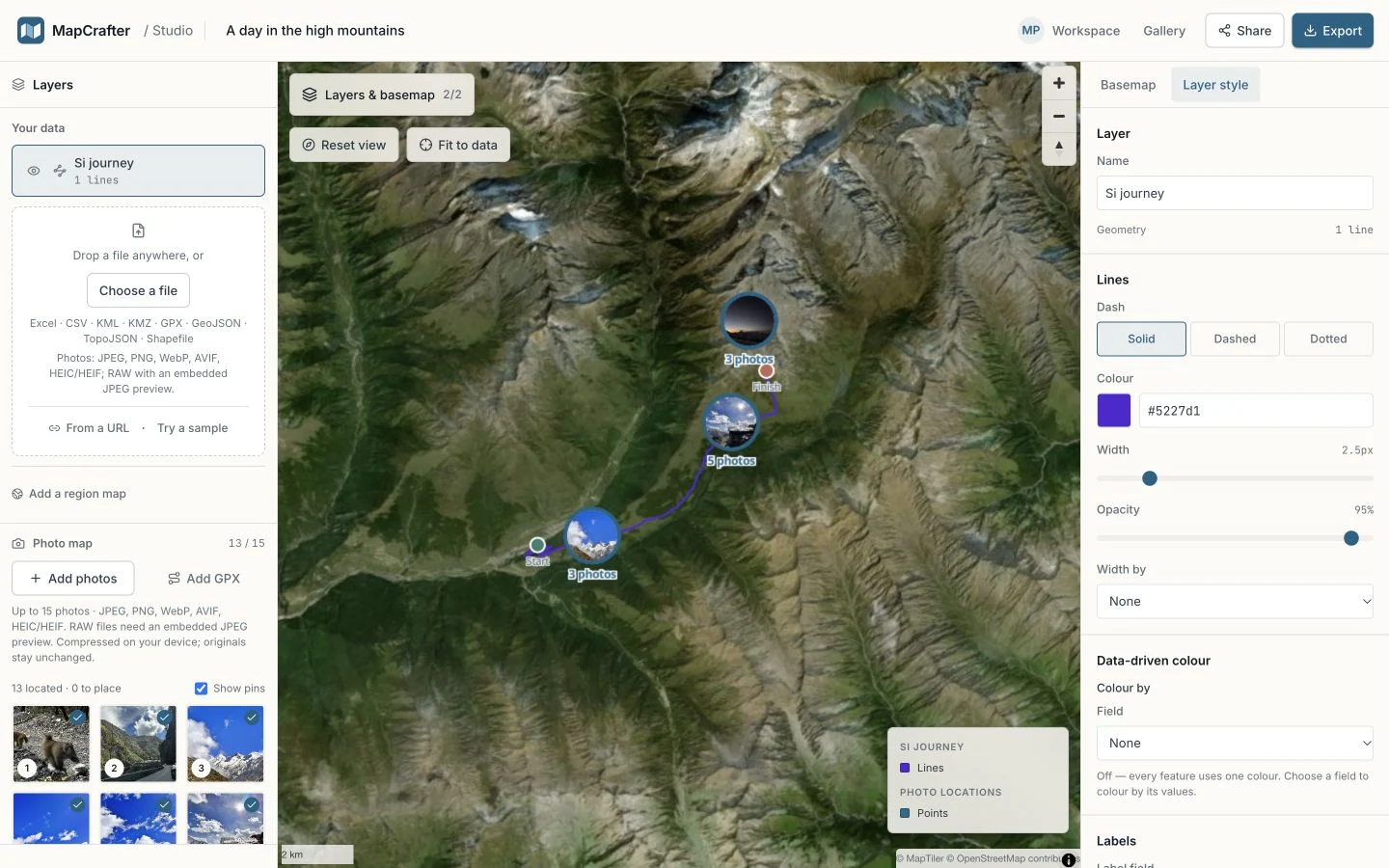
0:04Open Studio and choose Photo map → Add photos. Select up to 15 JPEG, PNG, WebP, AVIF or HEIC/HEIF images, or RAW files with a usable embedded JPEG preview. Location and capture-time metadata are read before local compression.
2.Add the recorded GPX route
0:14Choose Add GPX in the Photo map panel. Use a track containing coordinates, per-point timestamps and elevation for time matching and the recorded elevation profile. Convert FIT activities to GPX before importing.
3.Match photos by capture time
0:23Open Match to GPX by time, choose the track and check Camera timezone if the EXIF has no offset. Adjust Clock correction for an inaccurate camera clock, then choose Match by time. Photos with camera GPS or manual locations stay in place.
4.Place or correct a photo pin
0:35Select a photograph and choose Move pin on map, then click its location. You can also enter latitude and longitude. Add a caption and review the position; a manual move clears any previous altitude.
5.Explore grouped photographs
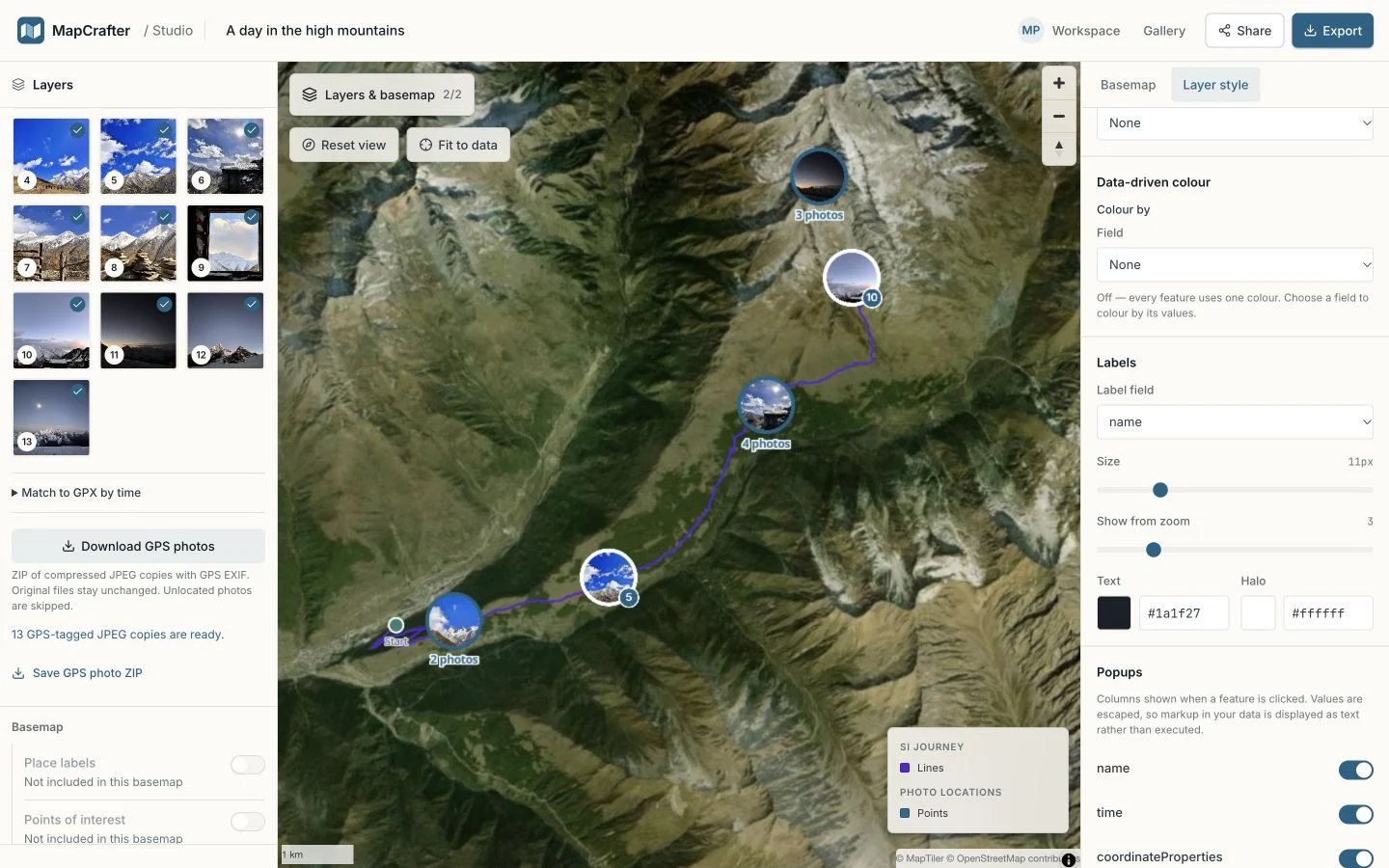
0:45Click a circular photo group or zoom in to see smaller groups and individual photos. Click an individual marker for its preview. Coincident photos open a chooser without changing their stored GPS coordinates.
6.Export GPS-tagged JPEG copies
0:53Choose Download GPS photos. The ZIP contains compressed JPEG copies with current GPS EXIF and altitude where available. Photos without a location are skipped. Your original files remain unchanged.
7.Build and export the journey video
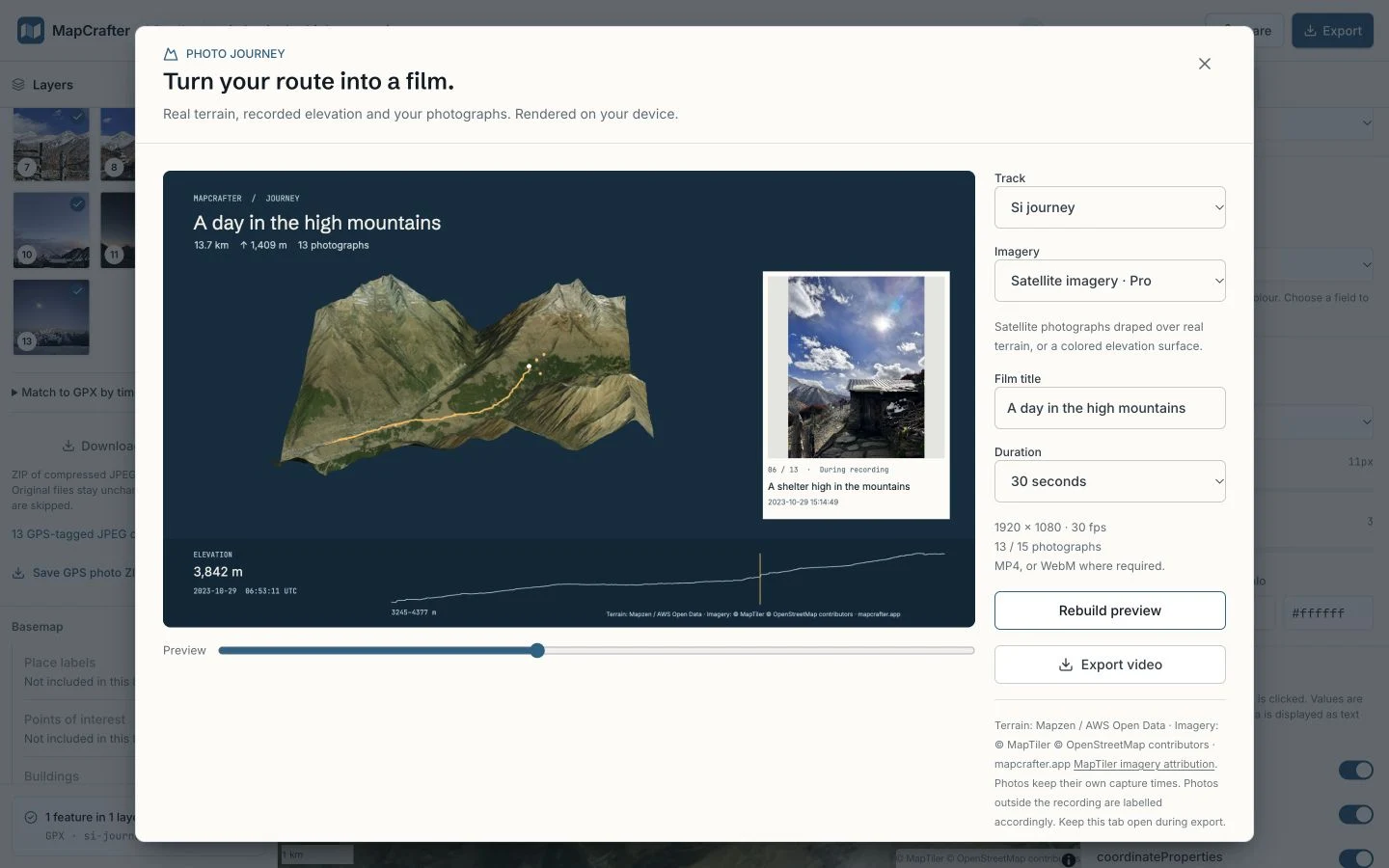
1:00Choose Export → Journey video, select the track and build the 3D preview. Pro can choose Satellite imagery; colored terrain remains free. Set the title and choose 15, 30 or 60 seconds, then export at 1920 × 1080 and 30 fps. Keep the tab open while encoding. MP4 or WebM availability depends on the browser.
01 / IMPORT & LOCATE
A route, a camera roll,
one shared story.
Add a GPX track in Studio’s Photo map panel, then add your photographs. GPS, altitude, capture time and EXIF timezone are read before compression. Correct your camera timezone or clock offset when matching photos without GPS.
Photo thumbnails appear directly on the map. Nearby photographs group automatically; select a group or zoom in to see individual photos. Photos with camera GPS keep that location. For an unlocated photograph, match its time to the track or choose its position manually.
02 / JOURNEY VIDEO
Revisit the terrain.
Frame the journey.
Choose Export → Journey video for a terrain preview, a moving route, recorded elevation and photo cards. Set the title and duration, then export a 1080p film on your device. Pro adds a satellite imagery surface; colored terrain remains free. MP4 is preferred; supported browsers can fall back to WebM.
The landscape uses real terrain elevation. GPX segments stay separate, and photographs taken before or after the recording keep their own capture times. Preview any moment before rendering the film.
03 / SAVE, SHARE & GPS COPIES
Keep the places.
Keep your originals.
Download a ZIP of JPEG copies with GPS EXIF written into each located photo, including altitude where available. Originals are preserved. Unlocated photographs are skipped.
Sign in to save maps to your workspace. Only compressed JPEG copies are uploaded: up to 1600 pixels and 1 MB each. Draft photos are private. Publishing makes the map, photos and their locations accessible to anyone with the share link.
Three ways to find the right place.
A phone photo, a camera without GPS and an old scanned photograph can all belong on the same map. Choose the location method that fits each image.
Use camera GPS
Best for phone and GPS-enabled camera photos.
Add your photos. Embedded coordinates place them on the map immediately. Check the location and caption in the Photo map panel; no GPX is needed.
Match the capture time
Best for a camera carried alongside a GPS recorder.
Add a timestamped GPX, check the camera timezone and clock correction, then select Match by time. The photo’s time determines its position between recorded points.
Place a photo yourself
Best for missing metadata or a location correction.
Select a photo and choose its position on the map, or enter latitude and longitude. Manual positions stay in place when you run time matching later.
Before matching a whole camera roll
Check one photograph taken at a recognizable stop. If its position is shifted, correct the camera timezone or clock offset, then match again. A positive clock correction moves the interpreted camera time later.
Keep the recording data intact
Export GPX with per-point coordinates, timestamps and elevation. Convert FIT activities before importing. Missing times prevent automatic matching; missing elevation leaves less recorded data for the film’s profile.
Choose what you want to take home.
Keep a record for your photo library, share an explorable travel journal or make a short film of a hike, ride or road trip.
| Output | What you get | Good for |
|---|---|---|
| GPS photo ZIP | Located JPEG copies with GPS EXIF; up to 1600px and 1 MiB per photo. | Keeping location data with your web-sized photo copies. |
| Map PNG | Visible photos, groups and route at Screen 1×, Print 2× or Poster 3×. | A trip report, presentation or printed route overview. |
| Shared photo map | An interactive published map with zoom and photo previews. | Letting others explore the journey. Sign-in is required to save and publish. |
| Journey video | 1080p / 30 fps terrain, route and photos; 15, 30 or 60 seconds. | A short travel film. MP4 or WebM, depending on browser support. |
Photo geotagging, explained.
Practical answers for your first photo map and the details that help when a file, timestamp or export needs a second look.
Photos & file formats
- Which photo formats can I import?
- Use JPEG, PNG, WebP, AVIF, HEIC or HEIF. Camera RAW formats include DNG, CR2, CR3, NEF, NRW, ARW, ORF, RW2 and RAF, provided the file contains a usable embedded JPEG preview. Add photos from the Photo map panel in Studio; you can combine different supported formats in one map.
- How does HEIC and RAW support work?
- HEIC is decoded on your device, with a local decoder when the browser cannot open it natively. For RAW, MapCrafter extracts an embedded JPEG preview and reads available EXIF metadata. It does not develop sensor RAW data. If a RAW file has no usable preview, export a JPEG companion from your camera software and import that instead.
- How many photos can a map contain, and how large can they be?
- Each map supports up to 15 photos. A source photo can be up to 25 MiB, or 100 MiB for RAW. Photos are converted to JPEG copies with a longest edge of up to 1600 pixels and a size of up to 1 MiB each. These are web-sized copies, suitable for the map and journey film; keep your originals for full-resolution editing and printing.
- Will importing or geotagging change my original files?
- No. MapCrafter reads location, altitude, capture time and timezone before compression. Editing a pin changes the map’s photo location. Download GPS photos creates new JPEG copies with GPS EXIF; it does not overwrite the original JPEG, HEIC or RAW file on your device.
GPX tracks & recording data
- Do I need a GPX track to make a photo map?
- No. Photos with camera GPS can appear on the map immediately, and you can place other photos manually. Add a GPX when you want a visible route, automatic matching by capture time or a journey video. A journey video needs a usable line track with at least two valid points.
- What should my GPX file contain?
- Latitude and longitude describe the route. Per-point timestamps are needed to match photos by time. Recorded elevation supplies the journey’s elevation profile where available. Export the original track from your recorder when possible: a simplified route may retain its shape while losing timestamps or altitude.
- Can I use a FIT activity from my watch or cycling computer?
- Convert the FIT activity to GPX first, then use Add GPX in Studio. Make sure the conversion preserves latitude, longitude, timestamps and elevation, rather than exporting only a route outline. Direct FIT import is not currently available.
- Can I choose between several tracks or recordings?
- Yes. Import your GPX files as layers, then choose a specific track under Match to GPX by time. You can also match against all imported GPX tracks. The Journey video dialog has its own track selector, so choose the activity you want to film. Separate GPX segments remain separate rather than being joined with an invented straight line.
Time matching & location fixes
- How does matching a photo to a GPX track work?
- MapCrafter compares the photo’s capture time with timestamped track points. When the time falls between two suitable points, it interpolates a position along that segment, including altitude when both points contain it. Photos with camera GPS or a manually chosen position keep their existing location when you run Match by time.
- My photos are an hour off. Which setting should I change?
- Check Camera timezone first. It is used when a photo has no EXIF timezone; an embedded EXIF offset takes precedence. Set the offset that applied where and when the photo was taken, including daylight saving time. For a camera clock that runs a few minutes early or late, use Clock correction. A positive correction moves the interpreted camera time later. Run Match by time again after adjusting the settings.
- Why does a photo still say it needs a location?
- The file may have no GPS or usable capture time, the GPX may lack aligned timestamps, or the photo may fall outside the recording. Matching also skips gaps longer than Max track gap, which defaults to five minutes. Check the date, timezone, selected track and gap setting. MapCrafter does not extrapolate past the recording or guess a position across a long gap; you can always place the photo manually.
- Can I correct a photo’s position manually?
- Yes. Select the photo in the Photo map panel and use its map placement control or latitude and longitude fields. Review the new location before exporting. A manual move clears the previous altitude because that height may no longer describe the new point. Time matching preserves manual pins, so it will not silently move your correction back onto the route.
Photo markers & map styling
- Why are several photographs shown as one circle?
- Nearby photographs are grouped to keep the map readable. The circle shows a representative photo and the total number of photos in that group. Click it to zoom towards the photographs; as you zoom in, smaller groups and individual circular photo markers appear. Grouping only changes the display, not the stored GPS coordinates.
- How do I open photos taken at exactly the same location?
- If photographs share coordinates, or the map cannot zoom far enough to separate them, clicking the group opens a photo chooser. Select a photograph to view it individually. There is no need to move the pins apart or change the original locations just to make the images accessible.
- Can I change the basemap, route colour and visible layers?
- Yes. Use the Basemap settings and Layers & basemap controls in Studio. Choose a light, dark or other available basemap style, adjust place labels, and show or hide your data layers. Select the GPX layer to edit its line colour, width and labels. Show pins in the Photo map panel controls the photo markers. Pro adds map DEM terrain, Globe views and a MapTiler satellite basemap. Visitors can view satellite imagery on a published map while its author has Pro; imagery browsing is limited to that shared map’s saved view.
- Can I add captions and see larger photo previews?
- Select a photo in the panel to edit its caption and inspect its location and capture time. Click an individual circular marker to open its larger preview. The numbered photos in the panel help you identify which photograph you are editing when several were taken close together.
Saving, sharing & privacy
- Do I need an account, and is the editor free?
- The current editor is free. You can import, place photos and export on your device without signing in. Sign in before importing if you want to save the photo map online and return to it from your workspace. For a guest session, keep the page open and export your work before leaving. Colored-terrain journey videos and the sixteen vector basemaps are free. Map DEM terrain, Globe and satellite imagery for maps and journey films require Pro; paid subscriptions are planned and are not currently available.
- What is uploaded when I save a photo map?
- Saving stores the map data, photo metadata and compressed JPEG copies in cloud storage. The original full-resolution HEIC, RAW or other source files are not uploaded. Compression happens on your device before upload. Location and capture-time metadata remain part of the photo map so that it can be reopened and edited.
- Who can see my photos and GPS locations?
- Saved drafts and their photos are private to your account. Publishing makes the shared map, photographs and their locations accessible to anyone with its share link. A share link is not a password. Review precise locations, visible photos and captions before publishing, especially when a route includes your home or another private place.
- Where can I return to my maps or get help?
- Open your workspace after signing in to find saved maps, filter drafts and published maps, and continue editing in Studio. For import or export problems, contact contact@mapcrafter.app with your browser, file format and the error message. You do not need to send private photographs or an entire GPS recording to describe the problem.
GPS copies, map images & films
- What does Download GPS photos export?
- It downloads a ZIP of compressed JPEG copies with each located photo’s current latitude and longitude written into GPS EXIF, plus altitude where available. Unlocated photos are skipped. These are the same web-sized copies used for the photo map, not full-resolution replacements for your camera originals. HEIC and RAW inputs are exported as JPEG copies.
- Does a PNG export include the photos and route?
- Yes. Export map offers Screen 1×, Print 2× and Poster 3× PNG sizes. The image includes the visible native photo markers or groups, GPX route and current map styling. Frame the map and set the layers you want before exporting. A PNG is a flat image; use the shared map when viewers need to zoom, open photos and explore interactively.
- What can I customize in a journey video?
- Choose Export map → Journey video, select the track, and build the 3D preview. Set a film title and choose 15, 30 or 60 seconds. The export is 1920 × 1080 at 30 fps, with route progression, recorded elevation and photographs. Dated photos outside the activity keep their own capture times and are labelled before or after the recording rather than being given invented track times.
- Where does the terrain come from, and why might video export be unavailable?
- The landscape uses Terrarium elevation tiles from Mapzen / AWS Open Data. Pro can drape MapTiler satellite imagery over that terrain; the free option uses colored terrain. Coverage and detail vary by region. The elevation profile comes from the recorded GPX, so it can differ from the terrain surface. An internet connection is needed to load terrain and map resources. Video encoding runs on your device and needs a browser with supported video encoders. MP4 is preferred, with WebM where required. Keep the tab open while rendering; try an up-to-date desktop browser if your device cannot export.
Still need a hand? Contact support and tell us where you got stuck.