Map workflows

Turn your listing sheet into a map you can share.

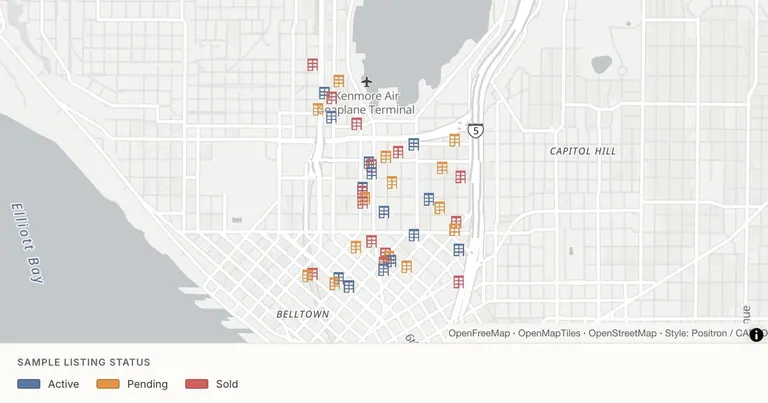
Map listing addresses from CSV or Excel, color sample properties by status and share a client-ready map. Start with a downloadable Seattle sample and edit it in Studio.

Map a Seattle listing sheet — Public OSM locations · fictional listing fields
Public OSM locations · fictional listing fields. Open the example to inspect its data and sources.
Who this is for

For real estate agents, landlords and investors who need to explain the distribution of properties. Prepare a map for a client conversation, portfolio review or presentation.

What you will deliver

A property map with status colors, address and price fields in popups, and a reviewed share link or PNG figure.

Start with these inputs

  • A CSV or Excel sheet with a property name, address, status and the fields you want to discuss.
  • Latitude and longitude if available. The sample CSV already includes coordinates; address-only sheets need an explicit geocoding step.
  • Reviewed, publishable data. The example has public OSM locations but entirely fictional listing status, price and bedroom fields.

Examples you can edit

Inspect the source and assumptions, then open the data in Studio and make it yours.

From your data to the finished map

  1. 01

    Start with your sheet

    Download the sample listing CSV or open the styled example. Replace its records with your own spreadsheet and retain coordinate columns when you already have them.

  2. 02

    Check locations and status colors

    Review imported points or address matches. Choose the field that drives category colors and the fields shown in each property popup.

  3. 03

    Prepare the client version

    Review the full included dataset, remove confidential fields, then export a PNG or save and publish the map. A published link exposes the included feature data.

Current workflow boundaries

  • Built-in address lookup is rate-limited. Larger address-only lists can use your own MapTiler or Mapbox key and provider quota. Coordinate-based imports do not need address lookup.
  • Sample prices are fictional, not valuations or market comparables. This workflow does not connect to MLS, CRM, rental accounting or listing feeds.
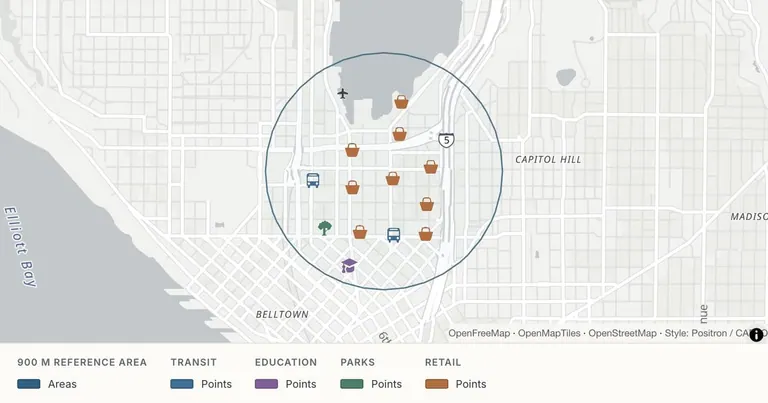
  • The Seattle context example is a dated public POI snapshot, not a complete amenities directory or an accessibility assessment.

Common questions

Can I map multiple property addresses from Excel?
Yes. Import Excel or CSV with coordinate columns, or use address lookup for an address-only sheet. Check the matched locations before sharing. For larger lookup jobs, use your own MapTiler or Mapbox key and the provider’s quota.
Are these actual Seattle listings?
No. The listing example combines public OpenStreetMap address locations with fictional Active, Pending and Sold statuses, prices and bedroom counts. It demonstrates the map workflow and is not a current listing feed, valuation or statement of availability.
Can I color listings by status or show prices?
Yes. Choose a status field for categorical colors and include your own reviewed price field in popups. The ready-made example uses explicitly named sample_price_usd and sample_bedrooms fields.
Can I use the same map for units or rental properties?
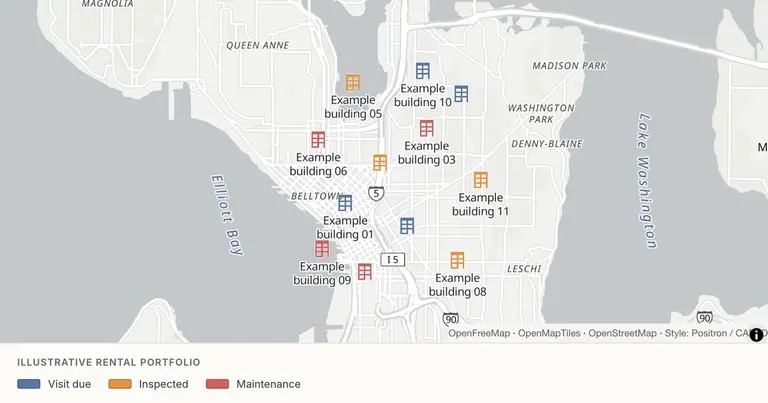
Yes. The property-portfolio example uses sample building, unit and inspection fields. Adapt the field names and categories for your own portfolio; it does not manage leases, tenants or accounting.
What data do I need before opening Studio?
Start with CSV or Excel containing a name, address and relevant status or numeric fields. Coordinates are recommended when available. The provided sample listing CSV and GeoJSON can be imported directly.
Is this workflow available for free?
The current editor is free. The examples use a free vector basemap. Satellite imagery, Globe and map DEM terrain require Pro, and paid subscriptions are still planned. This page does not offer checkout or promise future plan limits.
What is included in a published link?
Anyone with the link can view the published map and its included feature data. Remove confidential fields before publishing. Saving without publishing keeps a map out of the public viewer. Team workspaces, password-protected links and version-history browsing are not currently available.